> ## Documentation Index
> Fetch the complete documentation index at: https://docs.moca.network/llms.txt
> Use this file to discover all available pages before exploring further.
# Schema Creation Guide
> Create and publish AIR Kit credential schemas using the Schema Builder — define fields, types, validation rules, and JSON-LD context without code.
Credential schemas are the foundation of your credential issuance system. This guide will help you understand, create, and manage schemas effectively for your AIR Kit applications.
## Creating Schemas with the Schema Builder
The AIR Kit Schema Builder provides an intuitive interface for creating credential schemas without requiring technical knowledge of JSON schema structures.
### Step 1: Access the Schema Builder
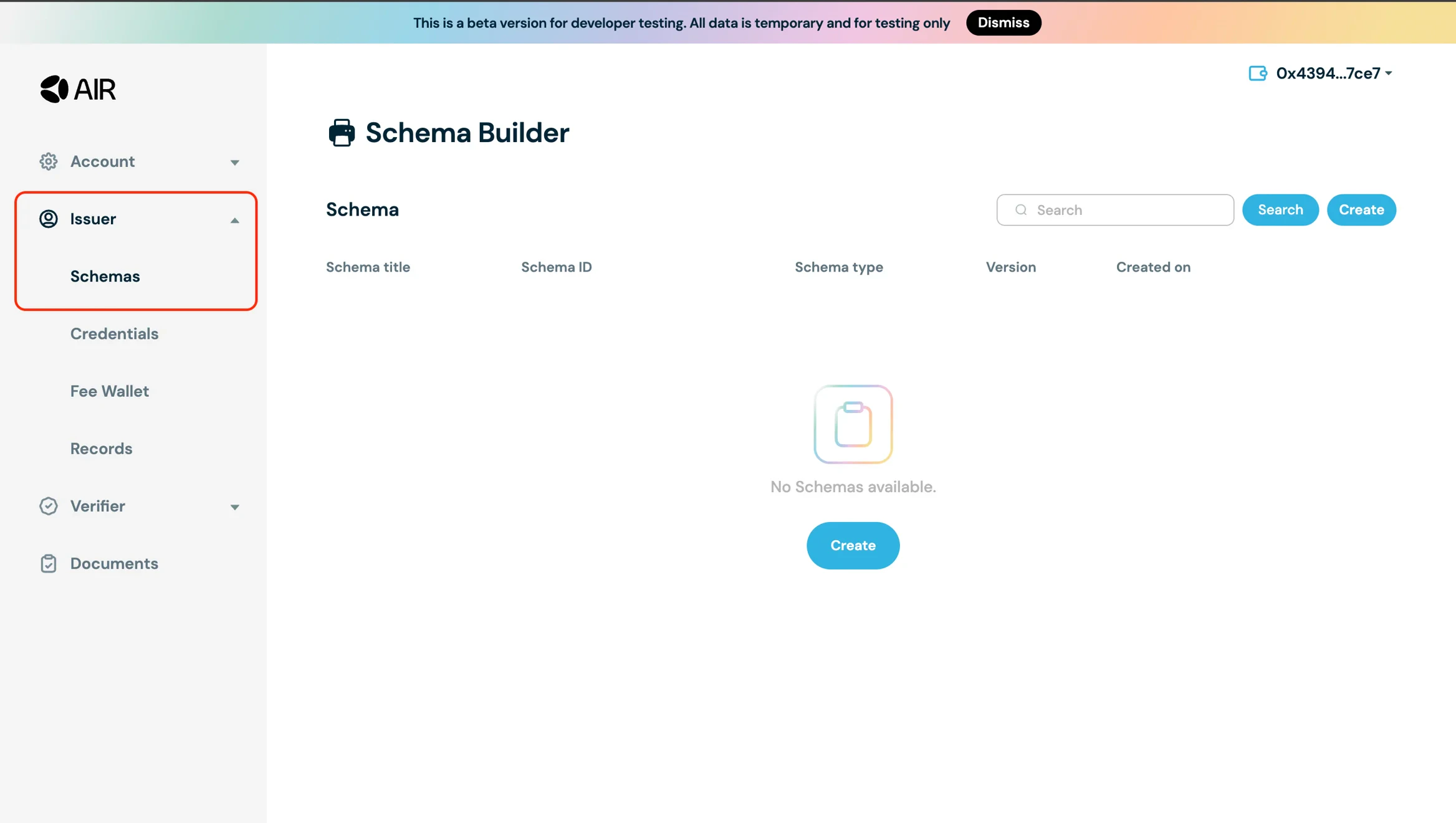
1. Go to the [Developer Dashboard](https://developers.sandbox.air3.com/dashboard/issuer/schemas)
2. Navigate to the **Schemas** section under **Issuer**
 ### Step 2: Create a New Schema
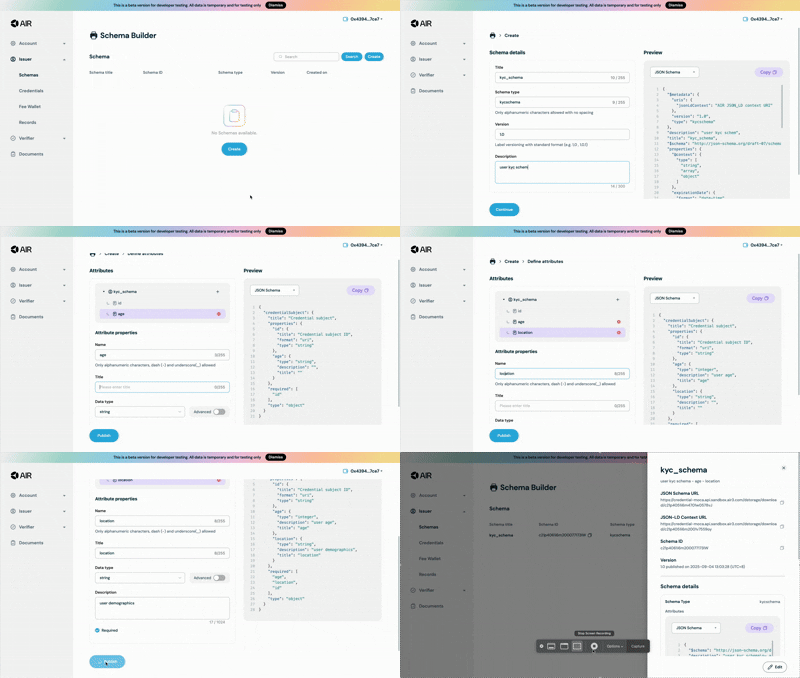
1. Click **"Create New Schema"**
2. Fill in the basic schema information:
* **Title**: Choose a descriptive name for your schema
* **Type**: Select or enter a category for your credential type
* **Description**: Provide a clear explanation of what this schema represents
### Step 3: Define Attributes
1. Click **"+"** to add attributes
2. For each attribute, specify:
* **Name**: Field identifier (use camelCase)
* **Type**: Choose from String, Number, Boolean, or Date
* **Description**: Explain what this field represents
* **Required**: Mark if the field is mandatory
### Step 4: Publish Your Schema
1. Review your schema structure
2. Click **"Publish"** to make it available for credential creation
3. Note the schema ID for use in your applications
## Schema Builder Best Practices
### 1. Choose Descriptive Names
* Use clear, descriptive names for your schema title and attributes
* Avoid abbreviations that might be unclear to other developers
* Example: `"memberId"` instead of `"mem_id"`
### 2. Provide Clear Descriptions
* Write detailed descriptions for each attribute
* Explain the purpose and expected format of each field
* Include any validation rules or constraints
### 3. Use Appropriate Data Types
* **String**: For text data, IDs, names, descriptions
* **Number**: For numeric values, ages, quantities, scores
* **Boolean**: For true/false values, flags, status indicators
* **Date**: For timestamps, expiry dates, event dates
### 4. Consider Privacy Requirements
* Only include fields that are necessary for your use case
* Remember that users can selectively disclose fields
* Avoid collecting sensitive data unless absolutely required
### 5. Plan for Future Updates
* Consider how your schema might evolve over time
* Use versioning to manage schema changes
* Design attributes to be extensible
### Step 2: Create a New Schema
1. Click **"Create New Schema"**
2. Fill in the basic schema information:
* **Title**: Choose a descriptive name for your schema
* **Type**: Select or enter a category for your credential type
* **Description**: Provide a clear explanation of what this schema represents
### Step 3: Define Attributes
1. Click **"+"** to add attributes
2. For each attribute, specify:
* **Name**: Field identifier (use camelCase)
* **Type**: Choose from String, Number, Boolean, or Date
* **Description**: Explain what this field represents
* **Required**: Mark if the field is mandatory
### Step 4: Publish Your Schema
1. Review your schema structure
2. Click **"Publish"** to make it available for credential creation
3. Note the schema ID for use in your applications
## Schema Builder Best Practices
### 1. Choose Descriptive Names
* Use clear, descriptive names for your schema title and attributes
* Avoid abbreviations that might be unclear to other developers
* Example: `"memberId"` instead of `"mem_id"`
### 2. Provide Clear Descriptions
* Write detailed descriptions for each attribute
* Explain the purpose and expected format of each field
* Include any validation rules or constraints
### 3. Use Appropriate Data Types
* **String**: For text data, IDs, names, descriptions
* **Number**: For numeric values, ages, quantities, scores
* **Boolean**: For true/false values, flags, status indicators
* **Date**: For timestamps, expiry dates, event dates
### 4. Consider Privacy Requirements
* Only include fields that are necessary for your use case
* Remember that users can selectively disclose fields
* Avoid collecting sensitive data unless absolutely required
### 5. Plan for Future Updates
* Consider how your schema might evolve over time
* Use versioning to manage schema changes
* Design attributes to be extensible