> ## Documentation Index
> Fetch the complete documentation index at: https://docs.moca.network/llms.txt
> Use this file to discover all available pages before exploring further.
# Quickstart 2: Credential Issuance
> Issue verifiable credentials with AIR Kit — define a schema, configure an issuance program, and trigger client-side credential issuance to user AIR Accounts.
**BLOCKING — Partner JWKS endpoint required.** `issueCredential`, `verifyCredential`, and Issue on Behalf all fail until you (1) host a **public HTTPS JWKS URL**, (2) register it in **Dashboard → Account → General → JWKS URL**, and (3) sign your Partner JWT with a `kid` that matches a key in that JWKS. Localhost is not reachable from AIR servers — use an HTTPS tunnel (ngrok, cloudflared) or deploy. See [JWKS endpoint setup](/airkit/usage/jwks-setup).
If you are looking to **issue credentials (programs) on chain** this guide will help you achieve that.
This Quickstart will walk you through:
* Setting up the **AIR Kit**
* Defining and issuing credentials to users
* Managing credential issuance flows
**Backend API Alternative**
This guide covers client-side credential issuance using the AIR Kit SDK. For server-side credential issuance without user interaction, see [Issue Credentials on Behalf](/airkit/usage/credential/issue-on-behalf).
## What You'll Build
By the end of this Quickstart, you will have:
* A **credential schema** defined for your app (e.g., membership, role, event pass)
* Code that **issues credentials to users** after login
* Application logic that handles credential issuance results
## Before Starting, Ensure You Have
* Completed or understood the [Login & Sessions Quickstart](/airkit/quickstart/) (recommended but not mandatory)
* Node.js v18+ installed
* A **public HTTPS JWKS URL registered in the Developer Dashboard** — `issueCredential` calls fail without it. See [JWKS endpoint setup](/airkit/usage/jwks-setup).
## Step 1: Install the AIR Kit
```bash theme={null}
npm install @mocanetwork/airkit
```
## Step 2: Get Your Partner ID
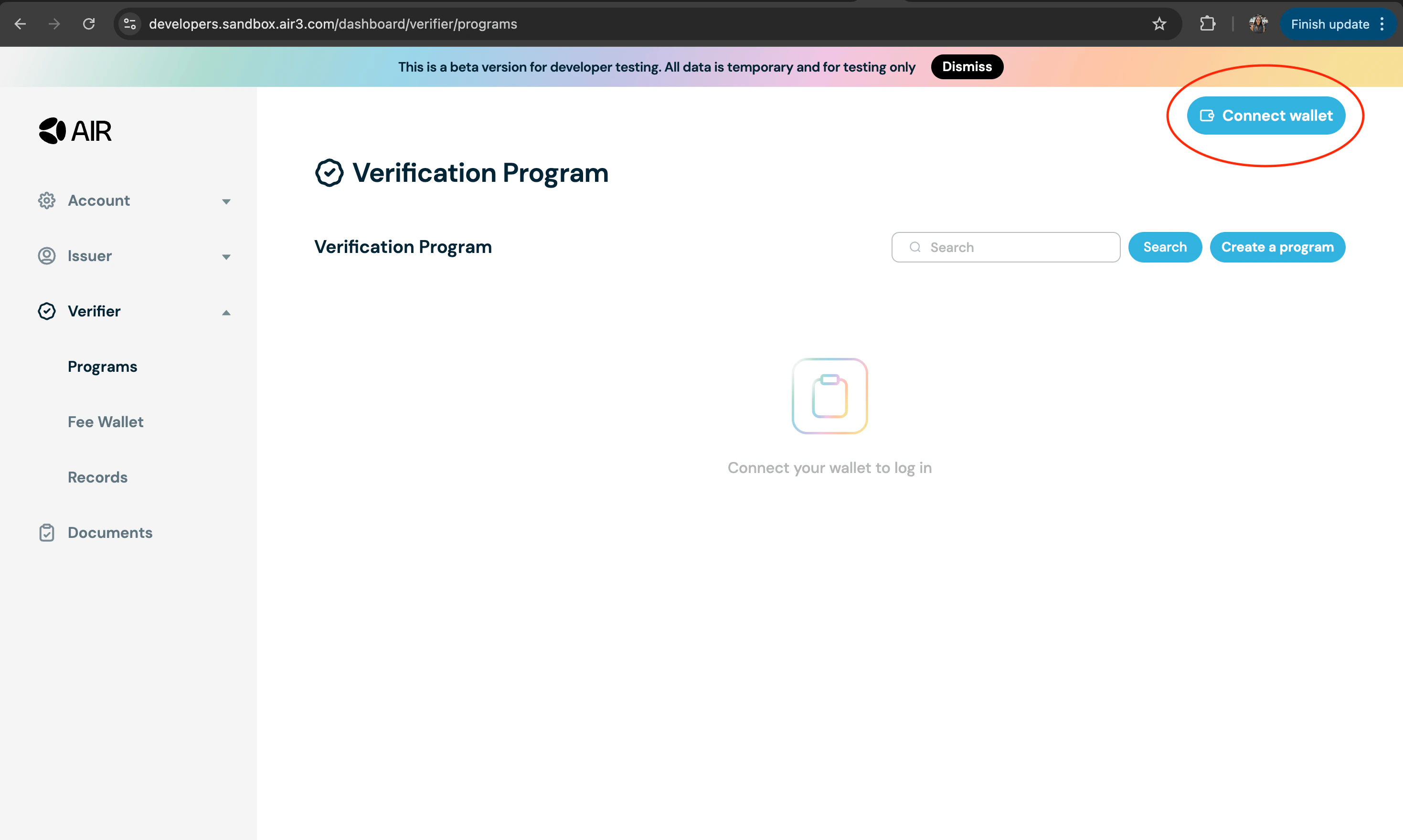
1. Go to the Developer Dashboard and login with your EOA wallet
2. Connect your wallet
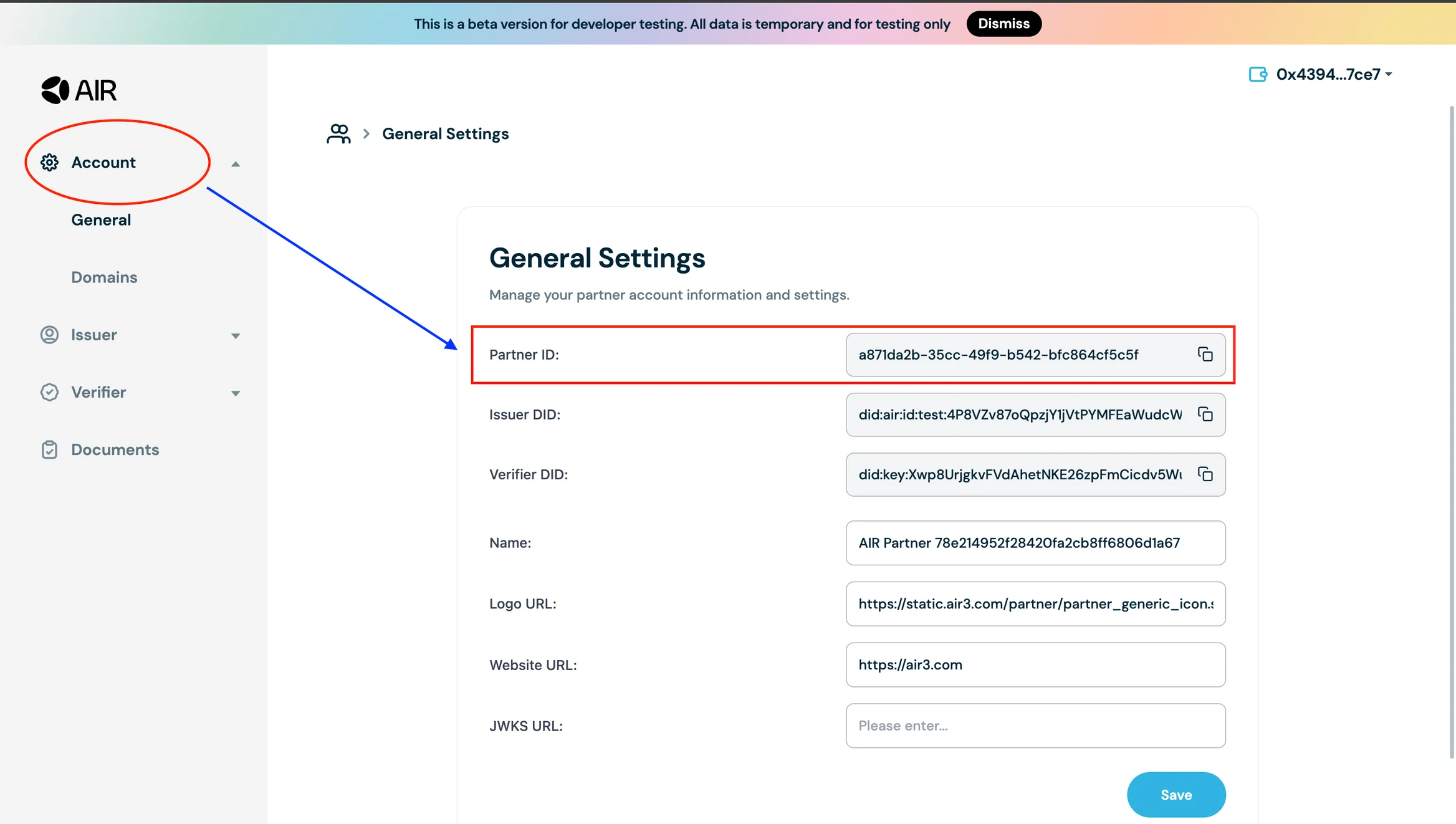
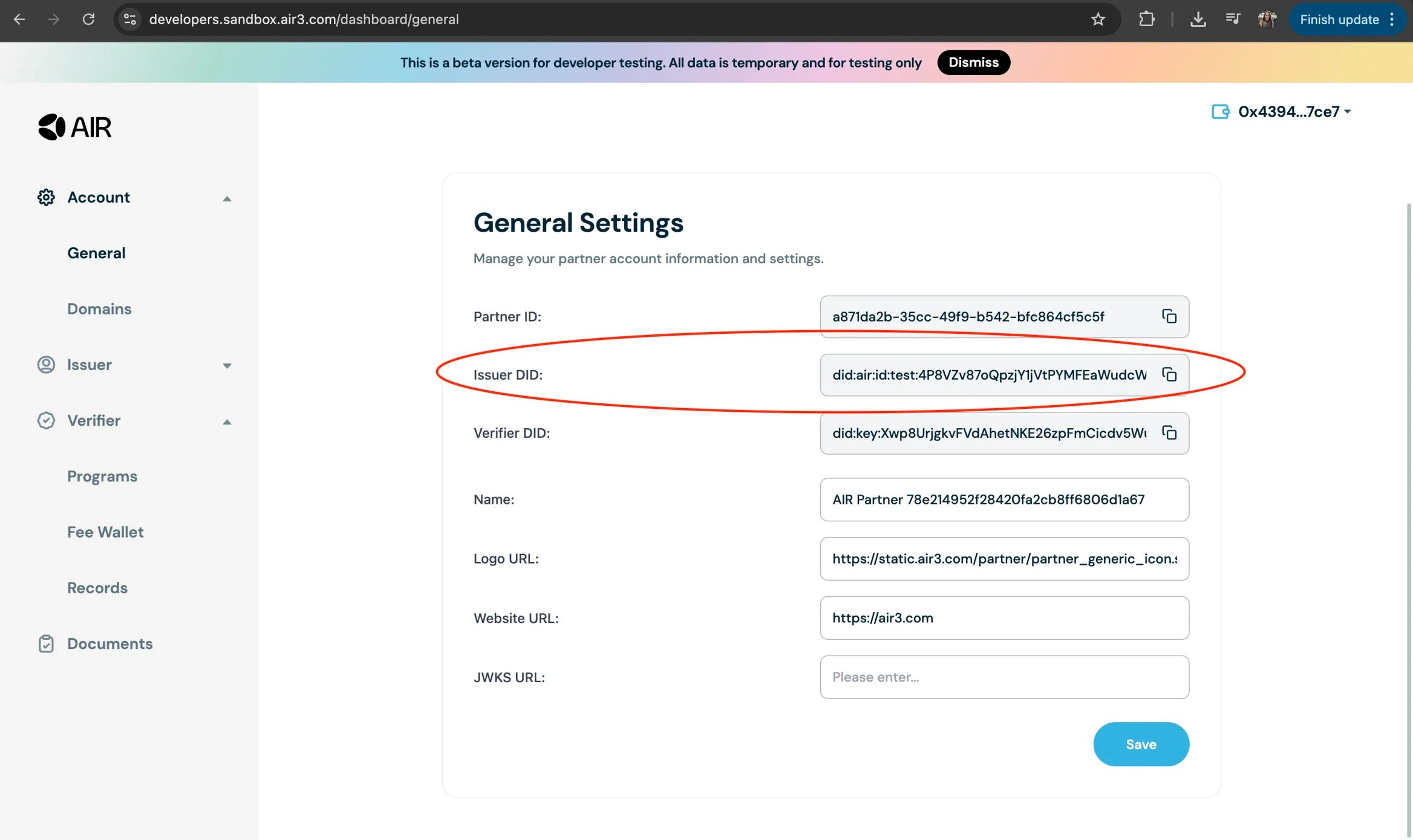
3. Navigate to the **Accounts section** on the navigation bar on the left. Then go to the **General section**. Copy the **Partner ID** and **Issuer DID** from the partner account information and settings
## Step 3: JWKS endpoint + Partner JWT (required — blocks issue/verify)
`issueCredential` cannot succeed until your Partner JWT is signed with a key that AIR can validate against your registered JWKS URL. This is two pieces of work, in this order:
### Step 3a: Implement the JWKS endpoint
Host a public HTTPS endpoint that returns your Partner JWT public key as a JWKS document, then register the **full URL** in the Developer Dashboard at **Account → General Settings → JWKS URL**. The canonical Next.js route used in [`air-examples`](https://github.com/MocaNetwork/air-examples) is `app/api/.well-known/jwks/route.ts`:
```ts app/api/.well-known/jwks/route.ts theme={null}
import { NextResponse } from "next/server";
import * as jose from "jose";
export async function GET() {
const publicKeyPEM = `-----BEGIN PUBLIC KEY-----\n${process.env.PARTNER_PUBLIC_KEY!}\n-----END PUBLIC KEY-----`;
const publicKey = await jose.importSPKI(publicKeyPEM, process.env.SIGNING_ALGORITHM!);
const jwk = await jose.exportJWK(publicKey);
return NextResponse.json({
keys: [{ ...jwk, kid: process.env.NEXT_PUBLIC_PARTNER_ID!, use: "sig", alg: process.env.SIGNING_ALGORITHM! }],
});
}
```
Localhost is not reachable from AIR servers — for local dev, use an HTTPS tunnel (ngrok, cloudflared) and register the tunnel URL. Full procedure (key generation, dashboard registration, `kid` rule, path matrix) is on the [JWKS endpoint setup](/airkit/usage/jwks-setup) page.
### Step 3b: Sign the Partner JWT
With JWKS live and registered, sign your Partner JWT server-side using the matching private key, with a `kid` header that appears in your JWKS. Detailed signing examples for Node.js, Java, C#, and Go are in [Partner Authentication](/airkit/usage/partner-authentication).
## Step 4: Create Schema for Credential Issuance
Before issuing credentials, you need to create a schema that defines the structure of your credentials. A schema is a blueprint that specifies what data fields will be included in your credentials.
**Schema Creation Guide**
For detailed instructions on creating schemas, including best practices, examples, and schema management, please refer to the [Schema Creation Guide](/airkit/usage/credential/schema-creation).
**Quick Setup:**
1. Go to the Developer Dashboard.
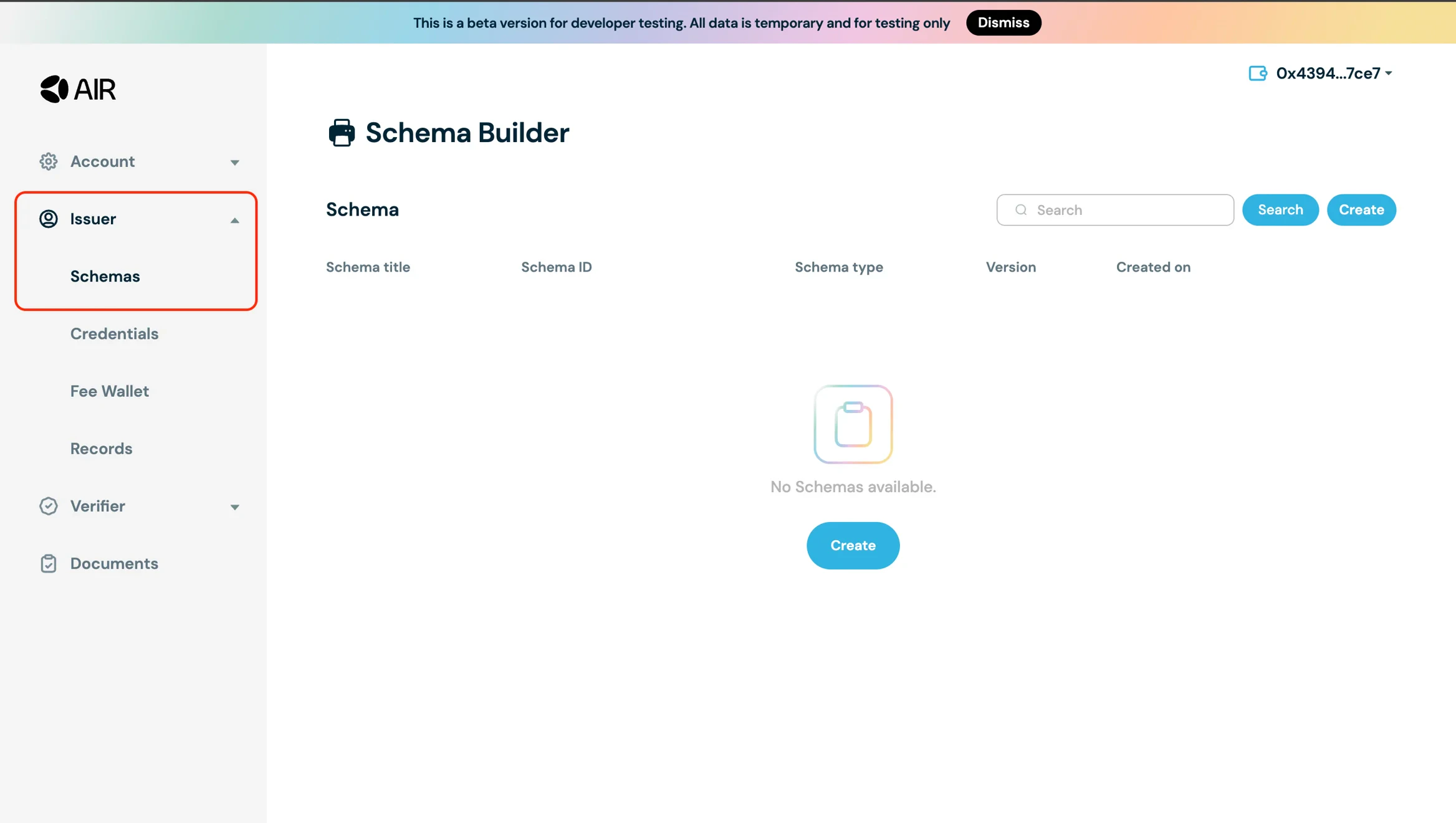
2. Navigate to the **Schemas** section under **Issuer**
3. Create a schema of your choice:
* Input title/schema type/description and click continue
* Click "+" and add at least one Attribute property
* Click Publish to make it available
4. Create credentials (now **Programs**) to be issued. Navigate to the **Programs Section** and create the program with the schema you just created
## Issuing Credentials
You can issue credentials (programs) using **both the SDK and the demo application**. Let's look at both methods.
### Issuing Credentials Using the [Example App](https://developers.sandbox.air3.com/example/issue)
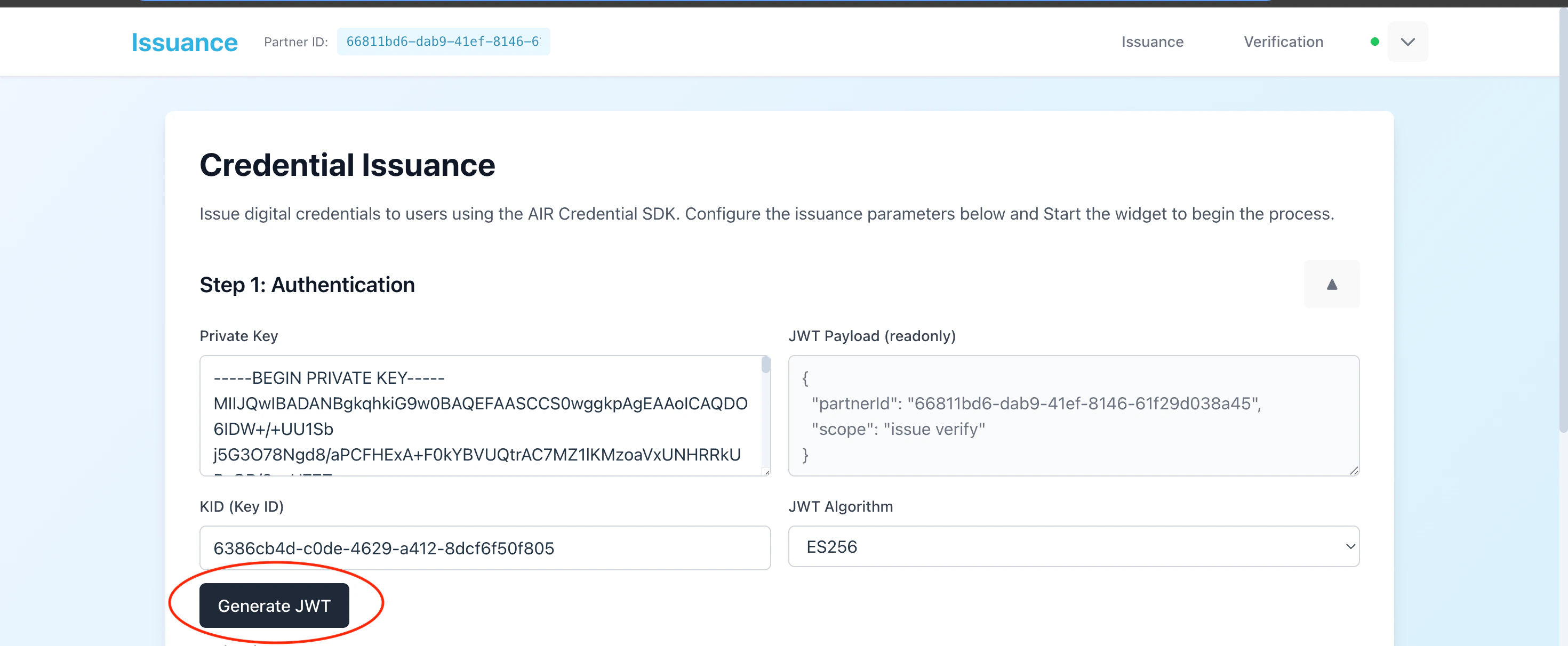
1. Generate a JWT token on the interface
2. Get the configuration details from the Developer Dashboard:
* Issuer DID and Partner ID from the **General page** under the Account section
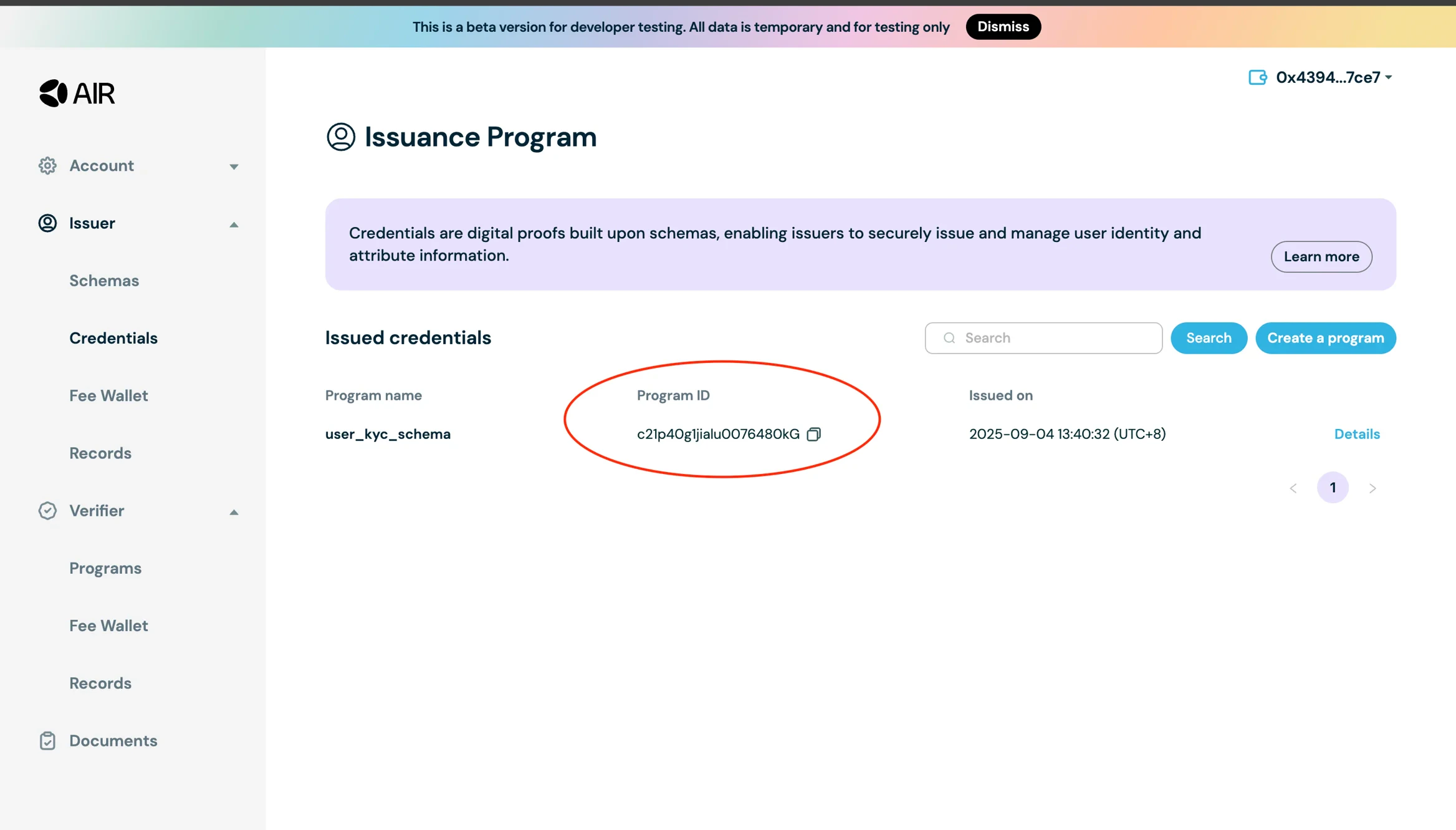
* Issuance program ID from the **Credentials section**
3. Go to the **Demo app** and enter the **Issuer ID**, **Issuance program ID**, and the relevant **field names and values**
4. Click **"Start Credential Issuance"**
5. The AIR Credential widget will open and guide the user through the issuance process
6. You'll receive a **success notification** when the process completes and can verify the credentials issued under the **records section** in the **Issuer Tab**
***
### Issuing Credentials Using the AIR Kit
The AIR Kit provides a convenient way to issue and verify digital credentials directly in your web application using the AIR service. The function handles **end-to-end flows**, including UI presentation and cryptographic verification, streamlining integration with your decentralized app (dApp).
#### Install the AIR Kit
```bash theme={null}
# Using npm
npm install @mocanetwork/airkit
```
#### Initialize the AIR Service
Before issuing a credential, you must create the **AirService** instance, initialize the service and login the user.
```ts theme={null}
import { AirService, BUILD_ENV } from "@mocanetwork/airkit";
const airService = new AirService({
partnerId: YOUR_PARTNER_ID // Replace with your actual Partner ID
});
await airService.init({
buildEnv: BUILD_ENV.SANDBOX,
enableLogging: true,
preloadCredential: true
});
// Without any parameters, this will trigger the default Air login dialog which provides different login methods for the user to choose from.
await airService.login();
```
#### Generate the Authentication JWT
Issuance requires an auth token (JWT) to authenticate your service with AIR.
```ts theme={null}
const jwt = await generateJwt({ partnerId, privateKey });
```
* `generateJwt` is a utility function. Refer to [Authentication (Partner JWT)](/airkit/usage/partner-authentication) on how to generate JWT tokens
* `partnerId` and `privateKey` come from environment variables
* JWT is used for authorization when calling `airService.issueCredential` function
NOTE: For production, generate JWTs on the backend to keep private keys secure.
#### Configure Issuance Parameters
Set up the essential credential issuance details
```ts theme={null}
const config = {
issuerDid: "did:example:issuer123",
credentialId: "c21hc0g0joevn0015479aK"
};
```
* `issuerDid`\*\* – Decentralized Identifier of the issuer
* `credentialId` – Program ID for the credential created on the Developer Dashboard
#### Define the Credential Subject
The credential subject contains the data fields issued to the user, e.g., age, location, or email.
```ts theme={null}
const credentialSubject = {
age: 20,
location: "Netherlands",
isMember: true
};
```
* Fields can be **string, number, boolean, or date**.
* The schema for the credential is defined before creating the Issuance program ID on the Developer Dashboard.
#### Issue the Credential
Call the AIR service to issue the credential:
```ts theme={null}
const result = await airService.issueCredential({
authToken: jwt,
credentialId: config.credentialId,
credentialSubject: credentialSubject,
issuerDid: config.issuerDid,
curve: "secp256r1" // Optional: "secp256r1" (default) or "secp256k1"
});
// If compliance encryption is enabled, you'll receive the public key
if (result.cakPublicKey) {
// Use cakPublicKey to encrypt compliance data before storing
console.log("Compliance encryption public key:", result.cakPublicKey);
}
```
* `authToken` – JWT generated in step 2
* `credentialId` – ID of the credential program
* `credentialSubject` – JSON object of the data to populate for the credential
* `issuerDid` – DID of the issuer
* `curve` – Optional. Elliptic curve for compliance encryption key generation (`"secp256r1"` or `"secp256k1"`). Defaults to `secp256r1`.
**Response:**
The function returns an object with an optional `cakPublicKey` (Compliance Encryption User Public Key) when compliance encryption is enabled for your issuance program. See the [Issuing Credentials](/airkit/usage/credential/issuing-credentials#compliance-encryption-public-key) documentation for detailed information about this feature.
> On success, the user receives a **signed credential** that can be stored in their wallet or identity provider.
#### Handle Issuance Status
The component tracks status for better UX:
* **Loading** – Shows a spinner while issuing the credential
* **Success** – Displays a success message when the credential is issued
* **Error** – Shows any errors if issuance fails
```ts theme={null}
setIsLoading(true);
setIsSuccess(true);
setError(null);
```
**Summary of Issuance Process:**
1. Initialize AirService with environment config and partner ID
2. Generate a JWT for authentication
3. Configure issuer DID and issuance program ID on the Developer Dashboard
4. Add credential subject fields (dynamic data)
5. Call `airService.issueCredential` to issue the credential
6. Handle success or error states
## Example Implementation
For a complete working example, check out the [AIR Credential Example repository](https://github.com/MocaNetwork/air-credential-example) which demonstrates:
* Full credential issuance flow with React components
* Dynamic credential subject field management
* Error handling and status management
* Complete integration with the AIR Kit's Credential Services
## Next Steps
Now that you know how to issue credentials, you can:
* **Verify credentials** - Learn how to verify the credentials you've issued in the [Credential Verification Quickstart](/airkit/quickstart/verify-credentials)
 3. Navigate to the **Accounts section** on the navigation bar on the left. Then go to the **General section**. Copy the **Partner ID** and **Issuer DID** from the partner account information and settings
 ## Step 3: JWKS endpoint + Partner JWT (required — blocks issue/verify)
`issueCredential` cannot succeed until your Partner JWT is signed with a key that AIR can validate against your registered JWKS URL. This is two pieces of work, in this order:
### Step 3a: Implement the JWKS endpoint
Host a public HTTPS endpoint that returns your Partner JWT public key as a JWKS document, then register the **full URL** in the Developer Dashboard at **Account → General Settings → JWKS URL**. The canonical Next.js route used in [`air-examples`](https://github.com/MocaNetwork/air-examples) is `app/api/.well-known/jwks/route.ts`:
```ts app/api/.well-known/jwks/route.ts theme={null}
import { NextResponse } from "next/server";
import * as jose from "jose";
export async function GET() {
const publicKeyPEM = `-----BEGIN PUBLIC KEY-----\n${process.env.PARTNER_PUBLIC_KEY!}\n-----END PUBLIC KEY-----`;
const publicKey = await jose.importSPKI(publicKeyPEM, process.env.SIGNING_ALGORITHM!);
const jwk = await jose.exportJWK(publicKey);
return NextResponse.json({
keys: [{ ...jwk, kid: process.env.NEXT_PUBLIC_PARTNER_ID!, use: "sig", alg: process.env.SIGNING_ALGORITHM! }],
});
}
```
Localhost is not reachable from AIR servers — for local dev, use an HTTPS tunnel (ngrok, cloudflared) and register the tunnel URL. Full procedure (key generation, dashboard registration, `kid` rule, path matrix) is on the [JWKS endpoint setup](/airkit/usage/jwks-setup) page.
### Step 3b: Sign the Partner JWT
With JWKS live and registered, sign your Partner JWT server-side using the matching private key, with a `kid` header that appears in your JWKS. Detailed signing examples for Node.js, Java, C#, and Go are in [Partner Authentication](/airkit/usage/partner-authentication).
## Step 4: Create Schema for Credential Issuance
Before issuing credentials, you need to create a schema that defines the structure of your credentials. A schema is a blueprint that specifies what data fields will be included in your credentials.
## Step 3: JWKS endpoint + Partner JWT (required — blocks issue/verify)
`issueCredential` cannot succeed until your Partner JWT is signed with a key that AIR can validate against your registered JWKS URL. This is two pieces of work, in this order:
### Step 3a: Implement the JWKS endpoint
Host a public HTTPS endpoint that returns your Partner JWT public key as a JWKS document, then register the **full URL** in the Developer Dashboard at **Account → General Settings → JWKS URL**. The canonical Next.js route used in [`air-examples`](https://github.com/MocaNetwork/air-examples) is `app/api/.well-known/jwks/route.ts`:
```ts app/api/.well-known/jwks/route.ts theme={null}
import { NextResponse } from "next/server";
import * as jose from "jose";
export async function GET() {
const publicKeyPEM = `-----BEGIN PUBLIC KEY-----\n${process.env.PARTNER_PUBLIC_KEY!}\n-----END PUBLIC KEY-----`;
const publicKey = await jose.importSPKI(publicKeyPEM, process.env.SIGNING_ALGORITHM!);
const jwk = await jose.exportJWK(publicKey);
return NextResponse.json({
keys: [{ ...jwk, kid: process.env.NEXT_PUBLIC_PARTNER_ID!, use: "sig", alg: process.env.SIGNING_ALGORITHM! }],
});
}
```
Localhost is not reachable from AIR servers — for local dev, use an HTTPS tunnel (ngrok, cloudflared) and register the tunnel URL. Full procedure (key generation, dashboard registration, `kid` rule, path matrix) is on the [JWKS endpoint setup](/airkit/usage/jwks-setup) page.
### Step 3b: Sign the Partner JWT
With JWKS live and registered, sign your Partner JWT server-side using the matching private key, with a `kid` header that appears in your JWKS. Detailed signing examples for Node.js, Java, C#, and Go are in [Partner Authentication](/airkit/usage/partner-authentication).
## Step 4: Create Schema for Credential Issuance
Before issuing credentials, you need to create a schema that defines the structure of your credentials. A schema is a blueprint that specifies what data fields will be included in your credentials.
 3. Create a schema of your choice:
* Input title/schema type/description and click continue
* Click "+" and add at least one Attribute property
* Click Publish to make it available
3. Create a schema of your choice:
* Input title/schema type/description and click continue
* Click "+" and add at least one Attribute property
* Click Publish to make it available
 2. Get the configuration details from the Developer Dashboard:
* Issuer DID and Partner ID from the **General page** under the Account section
2. Get the configuration details from the Developer Dashboard:
* Issuer DID and Partner ID from the **General page** under the Account section
 * Issuance program ID from the **Credentials section**
 3. Go to the **Demo app** and enter the **Issuer ID**, **Issuance program ID**, and the relevant **field names and values**
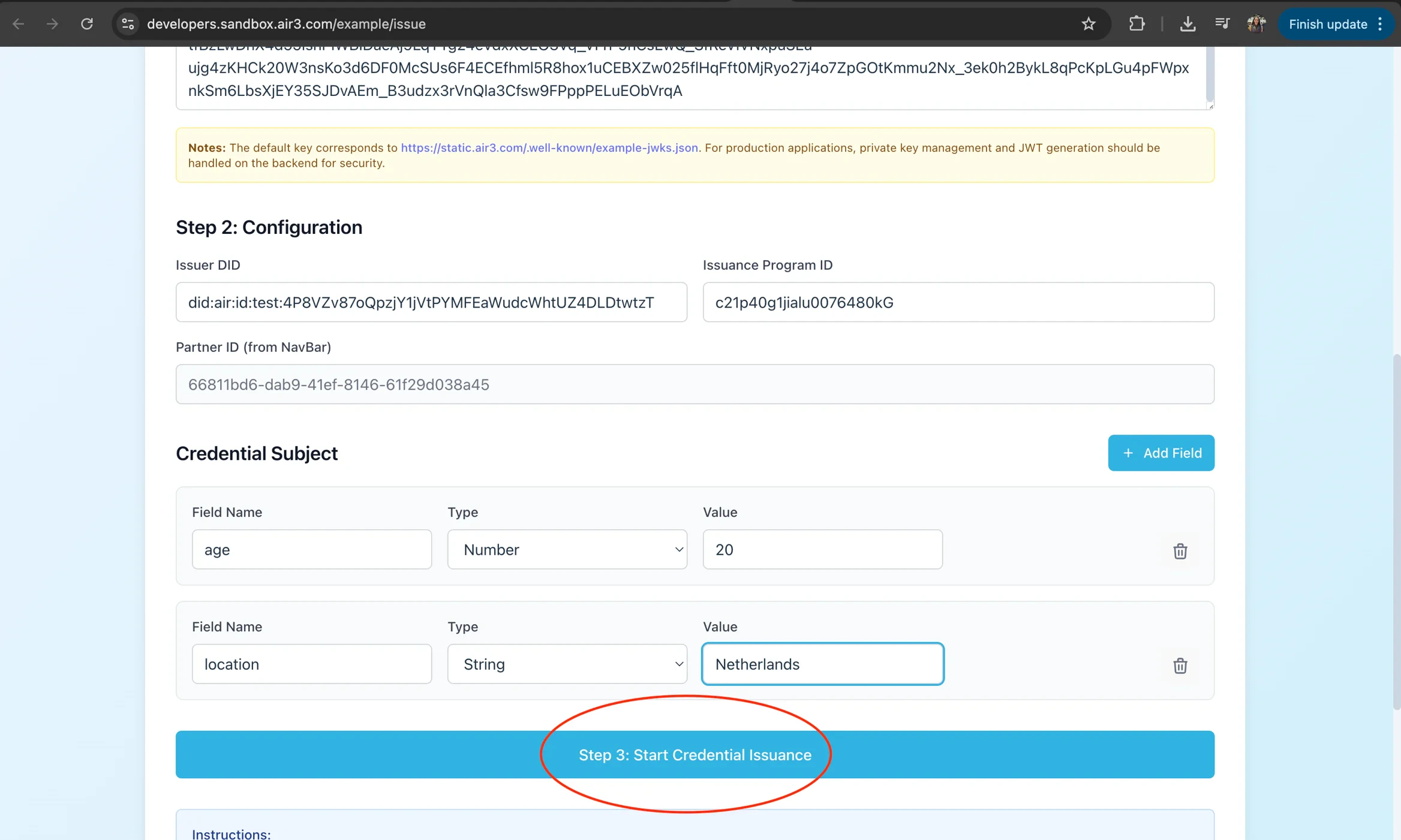 4. Click **"Start Credential Issuance"**
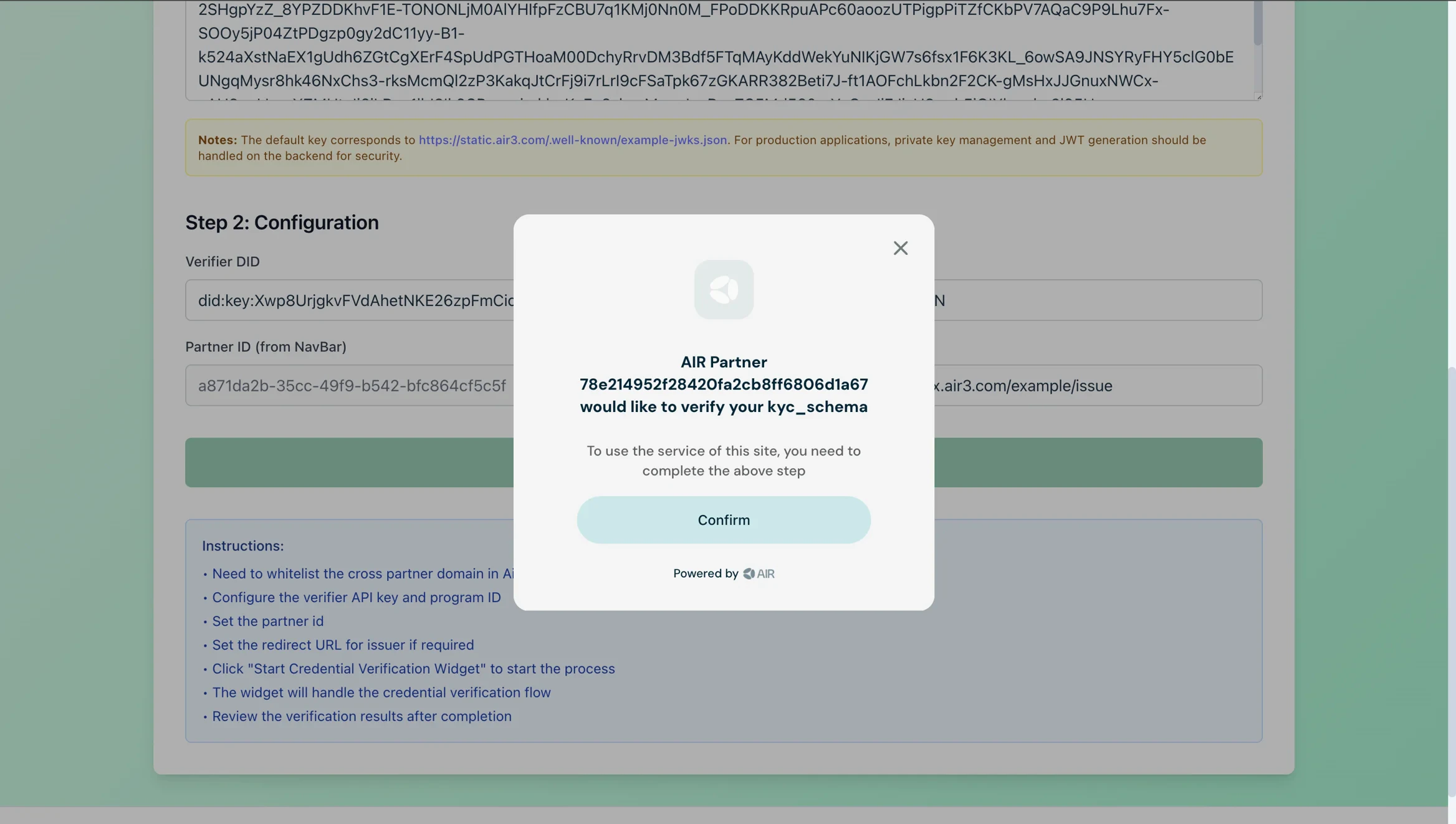 5. The AIR Credential widget will open and guide the user through the issuance process
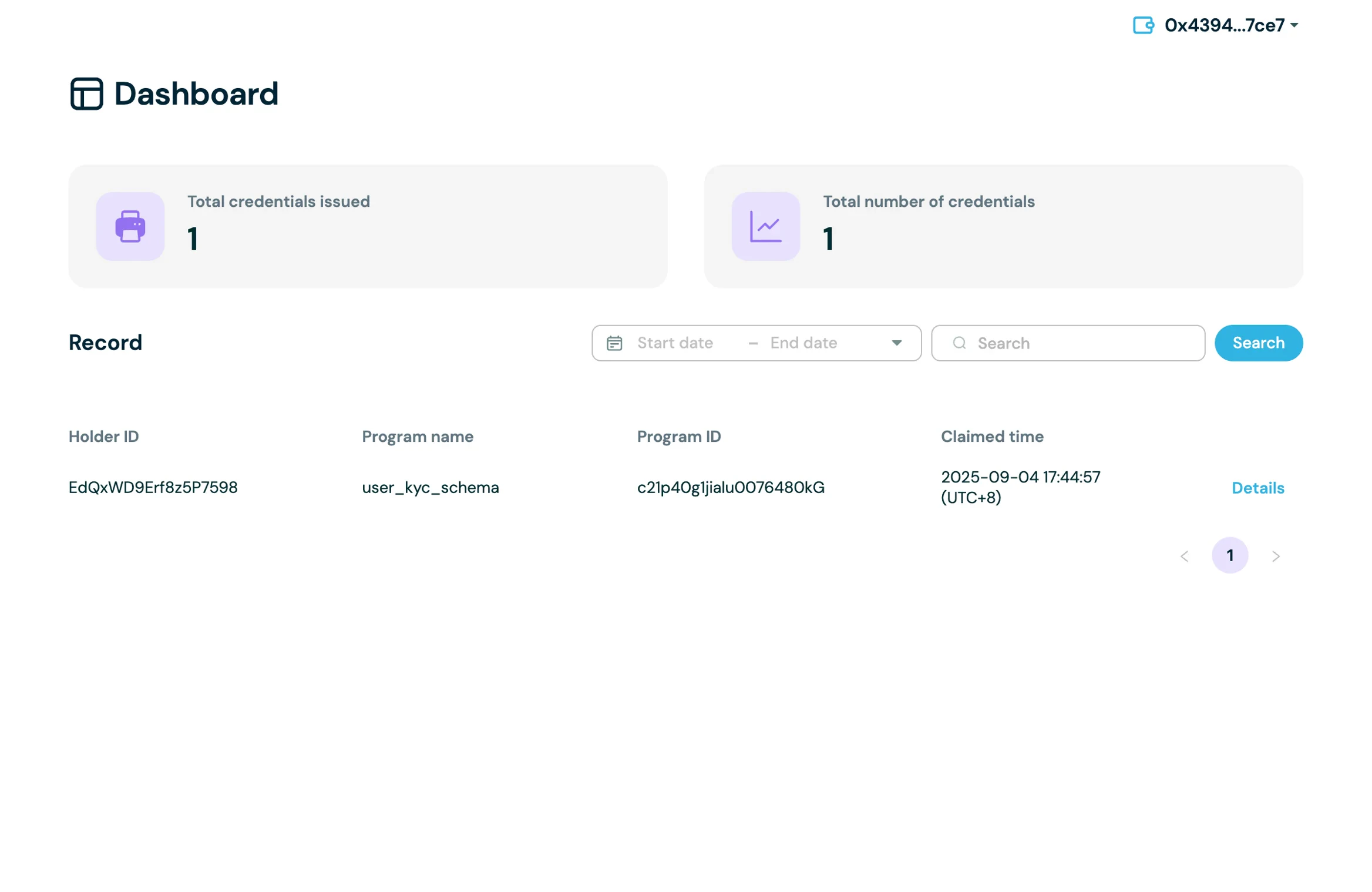
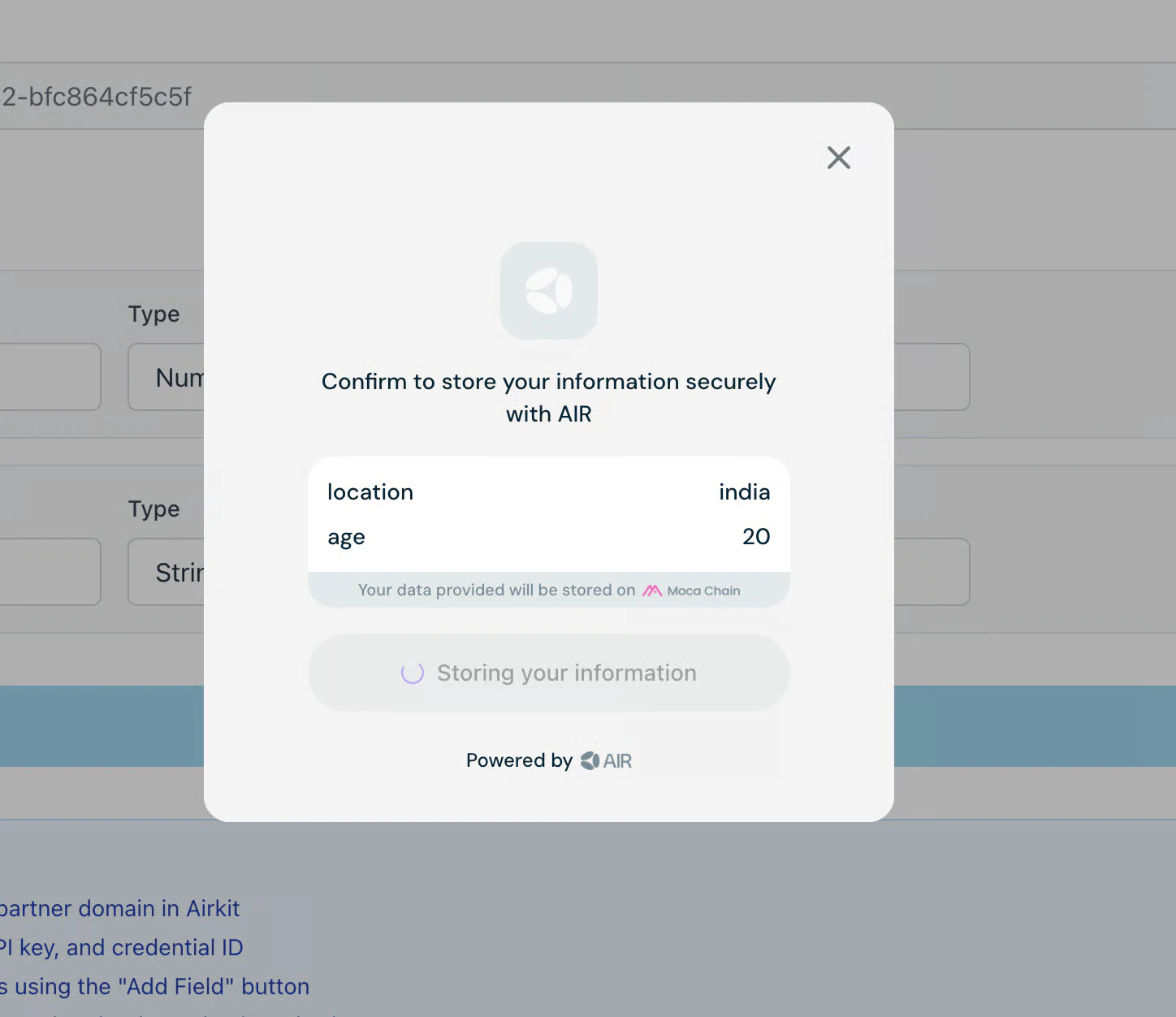 6. You'll receive a **success notification** when the process completes and can verify the credentials issued under the **records section** in the **Issuer Tab**
 ***
### Issuing Credentials Using the AIR Kit
The AIR Kit provides a convenient way to issue and verify digital credentials directly in your web application using the AIR service. The function handles **end-to-end flows**, including UI presentation and cryptographic verification, streamlining integration with your decentralized app (dApp).
#### Install the AIR Kit
```bash theme={null}
# Using npm
npm install @mocanetwork/airkit
```
#### Initialize the AIR Service
Before issuing a credential, you must create the **AirService** instance, initialize the service and login the user.
```ts theme={null}
import { AirService, BUILD_ENV } from "@mocanetwork/airkit";
const airService = new AirService({
partnerId: YOUR_PARTNER_ID // Replace with your actual Partner ID
});
await airService.init({
buildEnv: BUILD_ENV.SANDBOX,
enableLogging: true,
preloadCredential: true
});
// Without any parameters, this will trigger the default Air login dialog which provides different login methods for the user to choose from.
await airService.login();
```
#### Generate the Authentication JWT
Issuance requires an auth token (JWT) to authenticate your service with AIR.
```ts theme={null}
const jwt = await generateJwt({ partnerId, privateKey });
```
* `generateJwt` is a utility function. Refer to [Authentication (Partner JWT)](/airkit/usage/partner-authentication) on how to generate JWT tokens
* `partnerId` and `privateKey` come from environment variables
* JWT is used for authorization when calling `airService.issueCredential` function
***
### Issuing Credentials Using the AIR Kit
The AIR Kit provides a convenient way to issue and verify digital credentials directly in your web application using the AIR service. The function handles **end-to-end flows**, including UI presentation and cryptographic verification, streamlining integration with your decentralized app (dApp).
#### Install the AIR Kit
```bash theme={null}
# Using npm
npm install @mocanetwork/airkit
```
#### Initialize the AIR Service
Before issuing a credential, you must create the **AirService** instance, initialize the service and login the user.
```ts theme={null}
import { AirService, BUILD_ENV } from "@mocanetwork/airkit";
const airService = new AirService({
partnerId: YOUR_PARTNER_ID // Replace with your actual Partner ID
});
await airService.init({
buildEnv: BUILD_ENV.SANDBOX,
enableLogging: true,
preloadCredential: true
});
// Without any parameters, this will trigger the default Air login dialog which provides different login methods for the user to choose from.
await airService.login();
```
#### Generate the Authentication JWT
Issuance requires an auth token (JWT) to authenticate your service with AIR.
```ts theme={null}
const jwt = await generateJwt({ partnerId, privateKey });
```
* `generateJwt` is a utility function. Refer to [Authentication (Partner JWT)](/airkit/usage/partner-authentication) on how to generate JWT tokens
* `partnerId` and `privateKey` come from environment variables
* JWT is used for authorization when calling `airService.issueCredential` function